

What if your company history timeline told a focused business story instead of listing every date on record? Choosing a company history timeline template is a strong start. The real work is deciding which milestones matter and arranging them so the story feels clear, credible, and distinctly yours.
A timeline can make company growth easier to follow, but too many events crowd the page, and a generic layout can flatten the moments that set your business apart. A polished result doesn’t require hours of design work. Start with a structure that suits your story, then edit the content and layout so each milestone has room to make an impact.
This guide explains how to choose a timeline design for your audience, select milestones that support your story, and customize the layout for a professional presentation. You’ll also see how a PowerPoint infographic template can provide a flexible starting point, so you can spend less time building from scratch and more time making your company’s history meaningful.
Key Takeaways
- Choose milestones that show meaningful change, not every date in your company records.
- Verify dates against company records and approved public materials before presenting them as facts.
- Compare horizontal, vertical, and multi-row layouts based on your milestone count and how the timeline will be viewed.
- Use a company history timeline template that gives key events room to breathe and can be adapted to your brand and audience.
- Start with a PowerPoint infographic template to reduce manual layout work, then customize it around your verified company story.
What a Company History Timeline Template Should Help You Tell
A company history timeline is a visual sequence of meaningful milestones that shows how an organization developed over time. Its purpose isn’t to capture every date in a business archive. It helps an audience understand the turning points, choices, and achievements that explain where the company is today. A strong company history timeline template gives those moments a clear order and enough context to make the story easy to follow.
This differs from other timeline types. A project plan tracks tasks and deadlines toward a future goal. A product roadmap outlines planned product work. A personal career timeline follows one person’s professional path. Company history shows the evolution of an organization, including the decisions and developments that shaped its direction. Keep the focus on the business rather than turning the timeline into a schedule or a collection of individual biographies.
A company timeline can support a presentation, company profile, annual report, or brand narrative. In each format, it helps readers connect events that might otherwise appear as disconnected facts. For inspiration, browse Wikipedia’s category for company timelines. Look at how different organizations structure their stories, then select milestones that suit your own audience and purpose.
Which company milestones belong on the timeline?
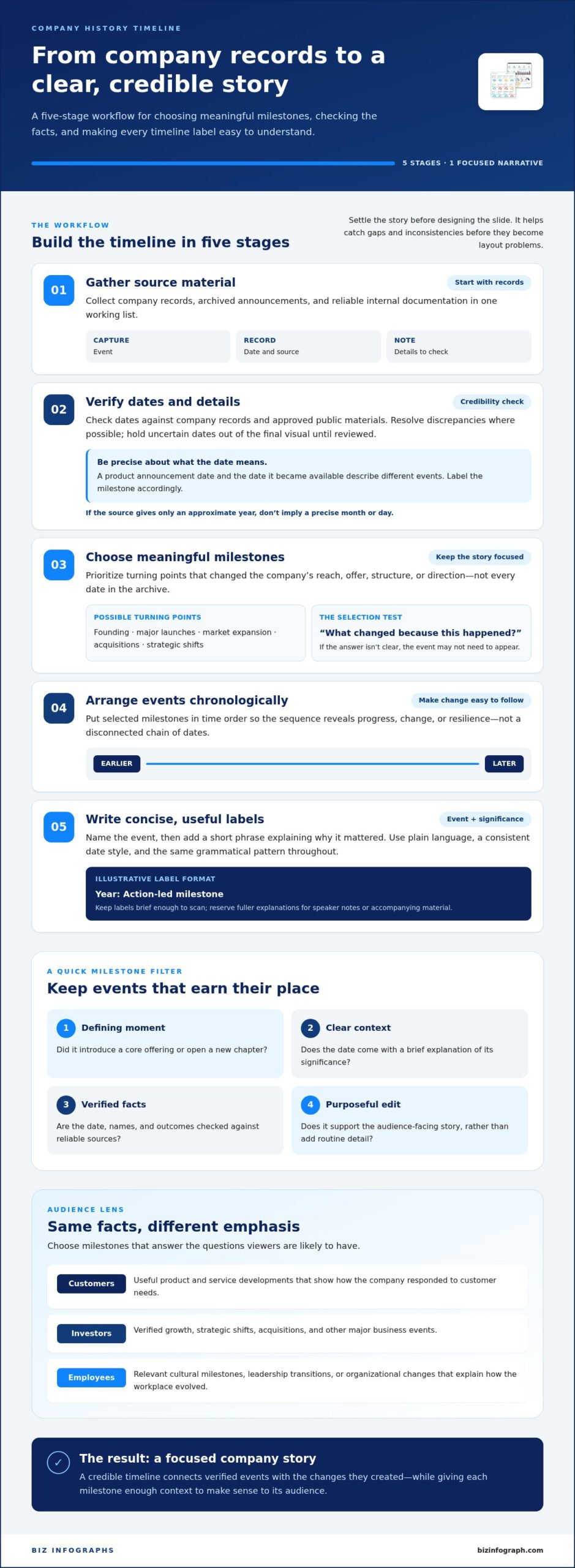
Start with turning points that changed the company’s reach, offer, structure, or direction. Founding, major product or service launches, expansion into new markets, acquisitions, and strategic shifts may all belong if they help explain the business’s development. For each candidate, ask: “What changed because this happened?” If the answer isn’t clear, the event may not need to appear.
- Include defining moments: A launch matters when it introduced a core offering or opened a new chapter, not simply because it occurred.
- Add context: Pair a date with a brief explanation of its significance, such as what the expansion made possible.
- Verify the details: Check records and approved public materials before presenting dates, names, or outcomes as facts.
- Edit with purpose: Leave out routine updates and minor events that don’t support the audience-facing story.
This selection process turns a list of dates into a narrative. The sequence should reveal progress, change, or resilience without asking viewers to interpret a bare chain of events on their own.
How the audience changes the company story
The facts can stay consistent while the emphasis changes. Choose milestones that address the questions your viewers are likely to have, and keep each claim accurate and relevant.
- For customers: Highlight useful product and service developments that show how the company has responded to customer needs.
- For investors: Foreground verified growth, strategic shifts, acquisitions, and other major business events.
- For employees: Include relevant cultural milestones, leadership transitions, or organizational changes that help explain how the workplace evolved.
Before adding an event, consider whether it strengthens this particular story. A focused selection makes the timeline more credible, memorable, and useful to the people viewing it.
Build a Clear Company History Timeline from Dates and Milestones
A reliable timeline begins before you open a design file. Work through the content in stages: gather records, verify dates, choose significant milestones, arrange them chronologically, and write labels that explain each event. This process helps catch gaps and inconsistencies before they become layout problems.
Verified dates make a company timeline more credible because readers can trust that its story rests on documented events, not guesswork. Check company records and approved public materials before presenting a date as fact. If a source gives only an approximate year, don’t imply a precise month or day. Resolve conflicting records where possible, and flag anything uncertain for review rather than choosing the most convenient version.
Gather and verify the timeline source material
Collect relevant company records, archived announcements, and reliable internal documentation in one working list. For each possible milestone, record the event, its date, the source, and any detail that needs checking. This makes verification easier and gives reviewers a clear basis for confirming the final timeline.
Look for discrepancies early. A launch announcement, for example, may show when a product was announced, while internal records may show when it became available. Those are different events. Choose the date that best supports the story and label the milestone precisely. Keep uncertain dates out of the final visual until they’re resolved.
Turn milestones into concise timeline labels
Write each label for someone unfamiliar with the company. Name the event, then add a short phrase explaining why it mattered. “Expanded into a new region” becomes more informative with context about what the move enabled. Internal project names and unexplained acronyms can leave viewers guessing, so use plain language. Be specific without turning each marker into a paragraph.
Use the same date style and grammatical pattern throughout. For example, a sequence might pair a year with an action-led label: “2018: Opened a second location” and “2021: Introduced a new service.” These are illustrative examples, not company facts. On a presentation slide, brief labels are easier to scan. Reserve fuller explanations for speaker notes or accompanying materials.
- Gather: Collect records and approved announcements tied to potential milestones.
- Verify: Match each date to a source and resolve conflicting details.
- Select: Keep events that help explain the company’s development.
- Sequence: Arrange confirmed milestones in chronological order.
- Draft: Write concise, consistent labels that connect each event to its significance.
Once the content is verified and edited, it’s ready to shape into a visual. A PowerPoint infographic template can provide a practical starting structure, so you can focus on accurate dates and clear storytelling instead of building every element from scratch.
Compare Company History Timeline Template Layouts Before Choosing
The right layout makes a company story easier to follow, not merely more decorative. Before choosing a company history timeline template, consider how many milestones you need to show, where people will view it, and how much explanation each event needs. A design that looks spacious on a laptop may be hard to read on a projected screen, especially if dates and labels are small.
Use these layout characteristics as a starting point:
- Horizontal: A short sequence arranged from left to right works well on a widescreen presentation slide. It gives the audience an intuitive path through a focused story, but space for labels can be limited.
- Vertical: A top-to-bottom sequence provides more room for event descriptions and suits content that needs more detail. Check that the progression remains easy to follow on the page or screen where it will appear.
- Multi-row: Several aligned rows can accommodate more milestones within a broad layout. Keep date placement and reading order consistent, or viewers may lose track of which event comes next.
There’s no universal milestone count that determines the best design. Match the layout to the content you’ve selected and the viewing format. A concise story may feel diluted if stretched across too much space, while a detailed sequence can feel cramped if every event is squeezed onto one line.
Match the timeline layout to its presentation format
For a widescreen slide, try a horizontal sequence when the story is brief enough to scan at a glance. Choose a vertical or multi-row arrangement if labels need more room or the sequence includes several stages. Preview the design at its actual display size. If the audience has to lean in or pause to read, simplify the content or choose a roomier structure.
Evaluate visual hierarchy and customization
Look for a clear distinction between dates, milestone names, and supporting details. Check that text elements are editable, labels have enough space, and colors and fonts can be adjusted to fit brand guidelines. Logo placement should feel integrated rather than compete with key information. Decorative lines, icons, and shapes should guide the eye, not distract from the chronology.
Compare options against the same needs:
- Short story, widescreen slide: A horizontal layout with prominent dates and brief labels.
- More explanatory detail: A vertical layout with room for concise supporting text.
- Several milestones across a broad canvas: A multi-row layout with an obvious reading path.
Finally, check that the design can be adapted without rebuilding its structure. A flexible starting point lets you refine typography, spacing, and brand colors while keeping the sequence intact. Prioritize chronological clarity first. When the order and labels are easy to understand, visual styling can strengthen the story instead of overwhelming it.
Customize a Company History Timeline Template Without Cluttering It
A strong company history timeline template gives your milestones structure, but thoughtful editing makes the story your own. Customize in a clear sequence: refine the content, apply your brand, adjust spacing, then review the complete slide. Keep the audience and display format in mind. If the layout feels crowded, trim supporting details or remove a milestone that doesn’t earn its space.
Make each design choice support readability. Consistent date formats help viewers follow the chronology, while labels of similar length create a calmer visual rhythm. Use typography and color with purpose. For example, one brand color can highlight milestone markers while a neutral background keeps text easy to read. Avoid assigning different colors to events unless those colors have a clear meaning viewers can understand.
- Edit content: Make the event and its relevance clear, and shorten wording that takes too long to scan.
- Apply branding: Use approved brand colors, fonts, and logo placement without competing with the timeline.
- Refine spacing: Give dates and labels room to breathe, especially where several events appear close together.
- Review the slide: Check the full sequence for consistency, readability, and clutter.
Make the timeline readable at a glance
Short labels and even spacing make it easier to distinguish one event from the next. Keep strong contrast between text and background, and avoid shrinking type just to fit extra milestones. If the slide looks packed, edit the content before adding design elements. Then switch to presentation view and inspect it at the size your audience will see. A slide that reads well when zoomed in may be hard to follow from across a room.
Resist the urge to fill every open space. White space separates ideas and helps viewers see the order of events. If one milestone needs much more explanation than the others, decide whether that detail belongs in the timeline or would work better in your spoken explanation or accompanying material.
Check accuracy, consistency, and brand fit
Before sharing, compare dates and event descriptions with approved source material. Check that date formatting, label length, capitalization, and typography follow a consistent pattern. Use brand colors selectively so they reinforce the sequence rather than suggest an unintended grouping. Finally, ask a colleague unfamiliar with the project to scan the slide. If they can’t tell what happened and why it matters, revise the label.
For more ideas on balancing visual hierarchy and clean slide design, explore these PowerPoint infographic templates. A ready-made structure can reduce manual layout work while leaving you in control of the content and brand details.
Ready to shape your verified milestones into a polished visual? Explore PowerPoint infographic templates as a practical starting point for your company timeline.
Turn Your Company Story into a Polished PowerPoint Timeline
You’ve shaped the story and selected a layout. Now bring those verified milestones into a presentation-ready visual. A PowerPoint infographic template provides an arranged visual structure, so you spend less time positioning elements manually and more time refining the story. Treat it as a starting point, not a source of company facts. Accuracy still depends on your approved records and content.
Begin with the milestone wording and dates you’ve already checked. Fit them to the template’s structure, then adjust the design to support the story rather than forcing content into spaces that don’t suit it. A well-chosen company history timeline template can make the sequence easier to scan while leaving room to adapt labels, colors, and typography to your business.
Use a template to focus effort on the story
Bring the approved milestone list into the slide before making cosmetic changes. This reveals whether the structure suits the amount of content and makes crowded labels or gaps in the chronology easier to spot. Then align the timeline’s visual treatment with the wider presentation. Consistent fonts, colors, and heading styles help the slide feel like part of the same business story.
A ready-made layout reduces the need to build each visual element from scratch, but customization makes it relevant. Use the time saved to sharpen the message: clarify why a turning point matters, remove wording that distracts from the main idea, and check that the emphasis fits the audience. For broader guidance on structuring a cohesive business deck, explore these business presentation templates.
Biz Infographs offers downloadable PowerPoint infographic templates designed to reduce manual design effort, with free lifetime updates. Use a template as a flexible visual foundation, then make the verified company story, rather than the design, the focus of the slide.
Prepare the timeline for its final audience
Before sharing, view the slide in the format your audience will see. Check that labels remain readable, the chronology is clear, and colors have enough contrast. Review spelling, dates, and event descriptions against approved source material. A colleague who hasn’t worked on the timeline can provide a useful final check: ask them to explain the sequence after a quick scan. If they misread a milestone, simplify its label or strengthen the visual order.
Finally, tailor the emphasis to the presentation’s purpose. A customer-facing deck may foreground changes to products or services, while an internal update may give more space to organizational turning points. Keep only details that help this audience understand the company’s development. For a ready-made starting point, explore presentation templates from Biz Infographs and shape a polished timeline around your company’s own milestones.
Make Your Company Story Ready to Share
Your company history is more than a record of what happened. It’s an opportunity to show customers, colleagues, and stakeholders how the organization has grown and what it stands for. Use a company history timeline template to shape that story into a visual people can follow, then make the final choices reflect your audience and purpose.
As you prepare your next presentation, start with one clear goal for the timeline: what should viewers understand or remember? Let that answer guide what you emphasize and how you present it. Downloadable PowerPoint infographic templates can reduce manual design effort, and free lifetime updates help keep those resources current.
Take the next step toward a polished business presentation with professional presentation templates. Your company’s story deserves a clear, confident presentation, and you have the tools to bring it to life.
Frequently Asked Questions
How many milestones should a company history timeline include?
Include enough milestones to make the company’s key changes understandable, but let the slide and audience determine the final count. A short executive presentation may need only the events that explain a major shift, while a longer company profile can accommodate more context. Draft the timeline, then check it at presentation size. If labels compete for attention or the sequence is hard to scan, remove lower-priority events.
What should be included in a company history timeline?
Include verified events that help explain how the company developed, such as its founding, a significant launch, an acquisition, or a strategic change. Add a brief note showing why each milestone matters to the story. A useful company history timeline template supports this focused narrative rather than serving as a complete archive. For example, a launch label can explain how it expanded the company’s offer, not just name the launch date.
Can I use a company history timeline template for an annual report?
Yes, a timeline can help annual report readers see selected milestones in sequence. Treat it as a visual aid, not a replacement for the report’s detailed explanations. Place it where it supports the surrounding content, and use labels that remain legible in the report’s final format. A short timeline beside a company overview, for example, can orient readers before they reach sections with fuller operational or financial detail.
How do I show a company milestone when the exact date is uncertain?
Don’t present an uncertain date as precise fact. Check approved records and reliable company materials first. If the evidence supports only a year or broader period, use that level of precision consistently across the timeline. When timing can’t be established, describe the event without assigning a date or omit it if chronology is essential to understanding the story. This prevents a visual from implying certainty that the source material doesn’t support.
Should a company history timeline include setbacks or only achievements?
Include a setback if it’s a consequential turning point that helps the audience understand the company’s direction. A timeline doesn’t need to document every difficulty, but the story can feel misleading if it leaves out context that changes how later events are understood. Use factual, measured wording rather than dramatic language, and consider whether the detail belongs in a public-facing timeline or a more appropriate internal presentation.
Can I edit a company history timeline template in PowerPoint?
Many PowerPoint timeline templates are designed to be adapted, but editing options depend on the individual file. Review its format and instructions before building your slide. Test a small change, such as updating one label or date, to see how the layout responds before editing the full timeline. Biz Infographs offers downloadable PowerPoint infographic templates with free lifetime updates for presentation and data-visualization needs.