

The map isn’t always the right chart for regional data. To learn how to choose the right chart for your data, start with the question you need to answer and the structure of the information: use a geographical chart when location or spatial patterns matter, and choose another chart when you’re comparing values, showing a trend, or exploring a relationship. The clearest option is the one that makes the intended comparison easy to see.
It’s easy to reach for a familiar bar or line chart, but regional data can tell a different story when location is part of the insight. A choropleth map shows values by administrative region, while symbol maps work for specific locations and locator maps can pinpoint a few events in a smaller area.
This guide explains how to match chart types to your data, your audience’s needs, and the message you want to communicate. You’ll learn when to use maps alongside charts for comparisons, trends, composition, distributions, and relationships, as well as how to avoid clutter and visual choices that distort the story.
Key Takeaways
- Start with the question your chart needs to answer, then match the visual to the type of data you have.
- Use bars or columns to compare categories, and lines to make change over time easier to follow.
- Choose scatter plots to explore relationships between numerical variables, while remembering that correlation alone doesn’t establish cause.
- For regional data, select a map based on whether you’re comparing areas, locating points, or showing movement.
- Keep charts readable with clear labels, appropriate scales, and a simple design that highlights the main insight.
Questions and comparisons guiding chart selection
Start by naming the comparison your audience needs to make: category, share, or spread. Knowing how to choose the right chart for your data means matching that task to a visual people can read accurately.
Readability and Visual Appeal
Readability is how easily viewers can identify values and comparisons. Visual appeal helps keep their attention on the evidence. Both matter: an attractive chart can still obscure the answer if labels, colors, or shapes compete with the data.
Compare candidate charts by asking what a reader must notice first. A bar chart can make a 3% difference between categories easier to spot than a pie or donut chart. A bubble chart adds visual interest, but circle areas are harder to compare precisely than bar lengths.
For a quick test, show the chart to someone unfamiliar with the dataset. If they can’t identify the larger value or explain the comparison, simplify the labels or choose a clearer visualization.
Bar and Column Comparisons
Bar charts use horizontal bars to compare categories; column charts use vertical bars. Both place values on a shared scale, making differences easier to judge than angles or areas.
Use a grouped bar chart to compare values across categories and multiple dimensions, such as product sales by region and quarter. A grouped column chart works well when each category contains two or three values, such as actual and target results.
For more than 10 items, horizontal bars can help prevent a crowded display. They also provide room for longer category names. A column chart can suit time-based or hierarchical data, but numerous labels may become difficult to scan, especially on a small screen.
Shares and Proportions
Part-to-whole charts show how individual categories contribute to a total. Pie and donut charts work when simple proportions are the main message and the dataset has just a few categories.
A pie chart represents values as percentages, and its segments should total 100 percent. It suits one categorical variable and one numeric variable, such as the share of survey responses by answer. Wedges of similar size are difficult to compare, so a bar chart can communicate their differences more clearly.
For composition across categories, a stacked bar chart compares parts within each bar. Treemaps use nested boxes sized by value, making them useful when hierarchy matters. Choose the format that makes the relevant shares easiest to compare, not simply the most decorative one.
Distributions and Outliers
Which charts are best for showing distributions and outliers? Histograms show the frequency of values within ranges, while box plots summarize spread, median, and outliers. Choose a histogram to reveal clusters or gaps; use box plots to compare distributions across groups.
For example, a box plot can compare delivery times across regions without plotting each observation. A column histogram can show how often delivery times fall within ranges, revealing where values concentrate.
When the distribution’s shape matters, a violin plot combines a box plot with a density curve. That extra detail can help compare patterns across groups, but a simpler box plot is often easier to interpret when the audience mainly needs medians, spread, and unusual values.
Avoiding mismatched, cluttered, and 3D visualizations
A chart can look polished yet lead readers to the wrong conclusion. Match the chart type to the data and question, then check that scales, labels, and visual emphasis preserve the comparison.
Visual Perception and Readability
Visual perception describes how readers interpret cues such as position, length, area, and color. A chart is easier to read when key values use cues people can compare accurately.
Position along a shared scale is easier to judge than area, volume, color saturation, or hue. For example, bars aligned to the same baseline make category comparisons more direct than differently sized circles.
Axes matter, too. Start bar charts at zero on the numerical axis so bar lengths represent values fairly. Start line charts at zero as well, avoiding a scale that exaggerates modest changes.
Color, Area, and Visual Complexity
Color, area, and visual complexity can highlight patterns or distract from them. Use color to distinguish meaningful groups, not to decorate every mark.
A bubble chart can encode a value through circle size, but people may misjudge circle areas. A 3D pie chart can also distort wedge comparisons, while a two-dimensional pie chart is easier to read. If the exact differences matter, favor a shared position or length scale.
Too many visual elements compete for attention. A line chart with many lines can be difficult to follow, especially when viewers must repeatedly match line colors to a key. Direct labels or separate, simpler plots can make the message clearer.
Choose chart types based on the data’s structure and the purpose of the visualization. A population breakdown by age group describes a distribution; a line chart can show a continuous pattern over time. The chart shapes how readers interpret the evidence and the decisions they make from it.
For comparisons, keep the numerical scale consistent across regions or groups. If separate panels use different scales, similar-looking shapes may represent different values. Make the scale and units clear, and highlight only the comparisons relevant to the question.
Time has an ordered sequence. In a time-series line graph, a measurement at 12:00pm comes before one at 12:15pm, so connecting points communicates continuity. A line chart can reveal a trend in daily website visitors; a slope chart can focus attention on change between two points.
For example, a line chart could show that Europe emits less CO₂ than it did 30 years ago. Keep the time axis in chronological order, and avoid crowding the view with too many lines. If groups obscure one another, use multiple simple plots to preserve each pattern.
Once the chart’s scales and visual cues are clear, explore Excel chart formats to present the data with a clean, readable design.
Scatter plots for relationships between numerical variables
A scatter plot places paired numerical values on two axes to show how variables relate. Use one point for each observation, such as a website page’s session count and conversion rate. The pattern can reveal clusters, unusual points, or a possible association that a column chart might hide.
Look at the overall shape before interpreting individual points. An upward pattern means larger values of one variable tend to occur alongside larger values of the other; a downward pattern suggests the reverse. A scattered cloud without a clear direction indicates a weaker visible relationship. Correlation does not always imply causation, so a plot alone can’t show that one variable caused another.
A scatter plot can also show distributions in a large dataset, but overlapping dots can conceal observations. Transparency or smaller marks can make dense regions easier to see. To represent a third variable, change point color or shape, such as using color to distinguish traffic sources while plotting sessions against conversion rates. A bubble chart adds a variable through point size, though circle areas can be difficult to compare.
Area charts serve a different purpose: filling the space below a line emphasizes cumulative totals. For example, a business tracking monthly units sold can use an area chart to show how the running total builds over time. A stacked area chart can show how categories contribute to that total, but overlapping layers may make individual category values harder to compare.
For composition, a stacked bar chart compares parts across categories, such as response types across survey groups. Each bar represents a whole, and its segments show the parts. This lets readers compare composition between groups while seeing the category totals. If exact segment comparisons matter, consider whether separate bars would make the values easier to judge.
When should I use a pie chart versus a bar chart? Use a pie chart for a few categories when the goal is showing each category’s share of one whole; its values should total 100 percent. Use a bar chart when comparing category values, especially if slices are similar in size or readers need to spot a small difference.
Pie and donut charts make simple proportions familiar at a glance, but wedge angles and areas are difficult to compare precisely. A bar chart places values on a shared scale, making small differences clearer. For instance, comparing department shares is a part-to-whole task, while identifying the department with the larger value is a category comparison. Choose the chart that makes the intended relationship easiest to see.
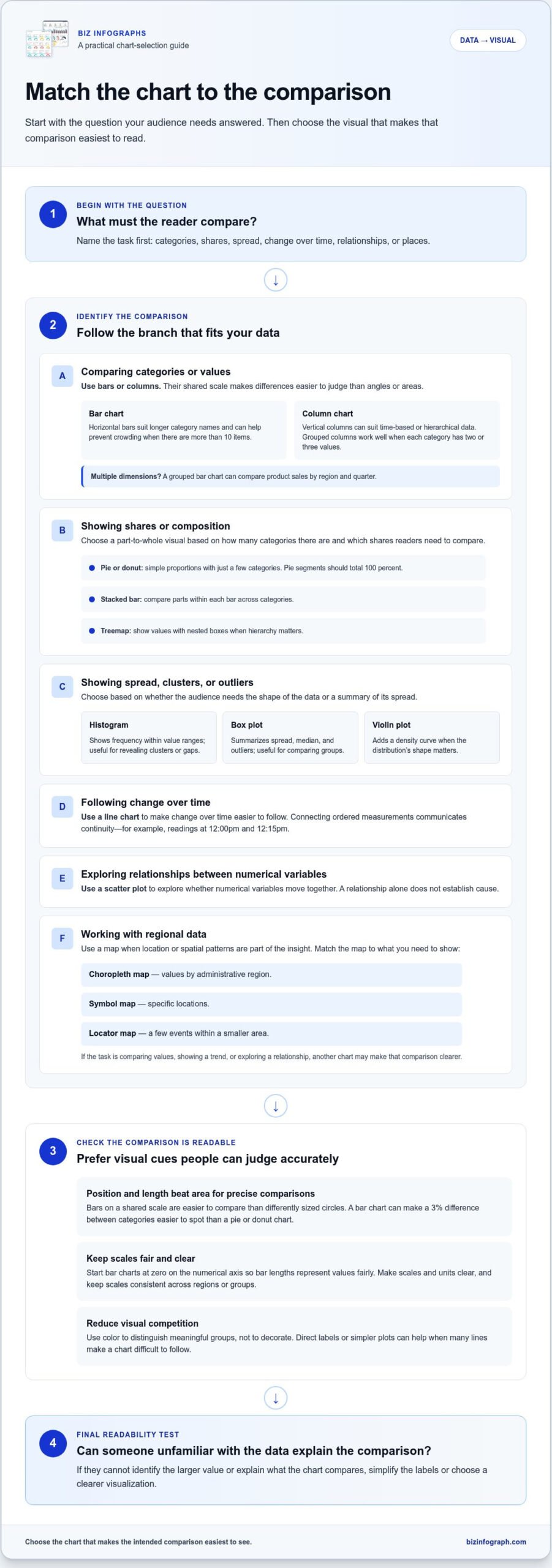
Choosing charts based on the question, data, and communication goals
Choose a chart type by matching the question to the variables and the comparison you want readers to make. A useful visualization makes the analytical task clear without asking viewers to decode unrelated details.
Variables, Data Volume, and the Question
Variables, data volume, and the question describe what the dataset contains and what the chart needs to reveal. Together, they help narrow the options before you begin styling.
With one time variable and one numerical variable, a line chart can show change over time. A histogram groups numerical values into ranges to show their distribution. If the data is hierarchical, a column chart can compare values across levels, while a treemap can show nested parts by value.
Consider how much information the chart needs to carry. A single bar chart can compare categories using one categorical and one numerical variable. If a spreadsheet includes several measures across groups, separate charts may clarify the comparisons better than putting every measure in one view.
Charts for Analytical Tasks
Analytical tasks are the comparisons or patterns readers need to identify, such as ranking, composition, or deviation from a baseline. Matching the chart to the task keeps the evidence easy to interpret.
For ranking, arrange categories in a bar chart so the largest or smallest values stand out. To compare composition across categories, use a stacked bar chart, with each bar containing its component values. For deviation, a bullet chart compares an actual value with one or more benchmarks.
Different tasks call for different visual cues. A heatmap uses color in a grid to reveal patterns between groups, while a scatter plot shows relationships between numerical variables. If the question is whether a measure is above or below a target, make the baseline visible rather than relying on color alone.
Story, Message, and Communication Goal
The story and communication goal determine which finding deserves attention and how readers should encounter it. A chart for exploration can reveal several patterns, while a presentation chart should foreground the comparison that supports its main message.
For example, a sales review might use a line chart to highlight a changing trend, then a bar chart to compare product categories. A stacked chart suits a message about how components contribute to totals, but it can make comparisons between inner segments less direct.
Before settling on a design, state the takeaway in one sentence, then check whether the chart makes it visible. If a column chart compares monthly results, keep the periods in chronological order. If the main point needs several legends and annotations to explain it, simplify the chart or split the information into separate views.
Geographical charts for regional data
A map earns its place when location helps explain a pattern, not merely because the dataset includes place names. Choose the display according to the geography represented and the relationship you want readers to see. Regional comparisons, specific locations, and movement between places each call for a different spatial chart.
Use a choropleth map when values are organized by administrative region, such as unemployment rates by state or service usage by county. Shading shows how values vary across areas, making broad geographic patterns easy to spot. Include a clear legend and distinguish missing data from low values so readers don’t mistake an unreported region for a meaningful result.
A choropleth map works best for comparing rates or other values that are meaningful across regions. Raw totals can favor larger-population areas, even when their underlying rate is lower. For example, a map of total sales by state shows where sales are highest, while sales per customer can reveal a different regional pattern. The metric determines the story the shading communicates.
For many specific locations, symbol maps place marks at points such as store addresses or public facilities. Use symbol size or color to encode a value, and prevent overlapping marks from hiding nearby locations. A locator map suits a few points or events within a smaller area, such as construction sites across one city. Choose the map that preserves the detail your audience needs.
Other spatial chart types answer different questions. A density map highlights concentrations, while a point distribution map shows where individual observations occur. A cartogram resizes geographic regions according to data values, distorting their shapes to emphasize the measure. This trade-off can help communicate magnitude, but readers may find geographic relationships harder to recognize.
When movement matters, use a flow map to show paths over time or between origins and destinations. A Sankey-style flow can communicate how quantities move through a system, while a map can locate routes between places. For example, a regional distribution team could display shipment paths from warehouses to delivery areas, revealing connections a static map of totals would miss.
Maps aren’t always the clearest choice. If the question is simply which region has the highest value, a sorted bar chart can make the ranking easier to read than differently shaded areas. A line chart can show regional trends over time, with one line per region, when change matters more than geography. Pair a map with a chart only when each view adds a distinct insight.
Choose a spatial display that makes location relevant and the metric fair to compare. Explore chart formats for regional data to shape a clear visual presentation.
Biz Infographs: PowerPoint Infographic Templates
Biz Infographs helps you turn a well-chosen chart into a polished presentation with PowerPoint Infographic Templates. They’re a natural next step when your analysis is ready and you want to communicate its main insight clearly to an audience.
Choose the format that fits your workflow: Excel Dashboard Templates can bring key measures together, while Power BI Templates support data-focused presentations. Automation Templates can help streamline repeatable tasks. Each option supports a different part of sharing and organizing information, so start with the chart and message you’ve already defined.
A clear visual should make your comparison easy to understand, not compete with it. Explore templates that fit your presentation needs, or contact Biz Infographs to learn more.
Make Your Next Data Story Clear
Your next chart can do more than report a result. It can help your audience see what deserves attention and decide what to explore next. Knowing how to choose the right chart for your data is a useful starting point, but clarity also depends on the context around the visual: the takeaway, the labels, and the moment you present it.
Before sharing your work, look at it from your audience’s perspective. Is the main point clear without a lengthy explanation? Does the design support the decision or discussion you want to encourage? A thoughtful final review can turn a technically correct chart into a confident communication tool.
When you’re ready to shape your analysis into a polished deliverable, Biz Infographs offers PowerPoint Infographic Templates, Excel Dashboard Templates, and Power BI Templates. Contact Biz Infographs to explore an option that fits your next project.
Frequently Asked Questions
How do I choose a chart based on my data and message?
Choose the chart that makes your intended takeaway easiest to understand. First identify what the values represent, then decide what readers should compare, find, or understand. For example, a monthly support report might need to show both total requests and the share resolved on time. Separate charts can keep those distinct measures clear instead of combining them in a confusing visual. Write the takeaway in a sentence before choosing the final design.
Which charts are best for comparing categories?
Bar charts are a strong choice for comparing categories, especially when names are long or values need to be ranked. Sort the bars by value if the order matters, or retain a meaningful sequence such as product groups used in a report. A dot plot can also compare group values when a vertical baseline isn’t meaningful. For example, it can display survey ratings by department without suggesting that the categories have a natural order.
What chart types show trends over time?
Line charts are useful for showing how a measurement changes across ordered time points, such as weekly support demand. Keep gaps between dates proportional to elapsed time, and don’t connect observations across a period without measurements if that suggests continuous data. For a simple before-and-after comparison, a slope chart can focus attention on the direction of change. A highlight table can help readers locate stronger and weaker periods in a calendar-like layout.
How should I visualize relationships between two or more variables?
Use a scatter plot to explore whether two numerical measures vary together, such as delivery distance and delivery time. If points overlap heavily, use transparency or divide the view into small panels by a relevant category. To add another variable, use color or shape sparingly and label the encoding clearly. A heatmap can summarize values across two dimensions when individual observations aren’t the focus, such as performance by weekday and time of day.
What chart types work best for part-to-whole comparisons?
Use a pie or donut chart when the audience needs a simple view of a few shares that form a complete total. For comparisons across several groups, a stacked bar chart can show each group’s composition side by side. Keep the denominator consistent: comparing percentages of different totals answers a different question from comparing absolute counts. For example, a team report can distinguish each department’s share of company responses from its total number of responses.
How do data size and number of categories affect chart choice?
As categories increase, labels and marks compete for space, so choose a layout that protects legibility. A bar chart can accommodate more than 10 items more clearly than a crowded column chart, particularly when labels are lengthy. For dense numerical observations, a histogram groups values into ranges rather than plotting every record separately. If the audience needs detail about individual records, consider a table alongside the summary visualization.
What are common chart design mistakes and how can I avoid misleading viewers?
Misleading designs often hide context through unclear units, inconsistent scales, or selective labeling. State what each axis measures and keep comparisons on compatible scales. Avoid decorative effects that change how values appear, and don’t rely on color alone to communicate a category. For example, label an unusual data point directly and explain its context rather than letting one extreme value dominate the overall pattern without explanation.
How do I choose accessible colors, labels, and scales for a chart?
Make the chart understandable without requiring readers to distinguish color alone. Pair color with direct labels, patterns, or shapes, and use clear contrast between marks and background. Write axis labels in plain language, include units, and place category names close to the values they describe. For a bar chart, start the value axis at zero; for any chart, use consistent intervals so visual spacing matches the numerical scale.