

A practical business budget starts with one sheet for income and expenses, monthly columns, and formulas that total planned and actual amounts. A business budget template in Excel can link detail sheets to a summary, so totals update when you change figures. Keep categories clear and update the data as costs and revenue come in.
Excel appeals because you can shape the budget around your business and keep the plan, spending, and cash flow together. But a useful spreadsheet needs more than rows of numbers. Set up the workbook, record expenses, compare actual costs with your plan, and review expense benchmarks without treating them as universal rules.
We’ll also look at ways to make the numbers easier to read with formulas, filters, and charts, then cover free Excel budget templates for 2026 and what each is useful for. Start with a straightforward structure, and you’ll have a clearer view of where your money is going and what to adjust next.
Key Takeaways
- Build budget categories around your business model, then use expense benchmarks as reference points rather than fixed rules.
- Keep income, expenses, and cash flow organized so you can spot how spending patterns affect available cash.
- Compare planned costs with actuals and investigate categories that stay more than 10% off in the same direction for two consecutive months.
- Choose a free Excel or printable template based on how you plan to update, review, and share your budget.
- Use charts and a regular review routine to make shifts in costs easier to see and act on.
How to set up a basic business budget in Excel?
Start with a spreadsheet that separates income, operating expenses, and cash movement by month. A business budget template in Excel can include built-in totals that update when you change figures. Customize an annual budget by categorizing income and expenses, then add monthly columns to make spending patterns visible. Keep the categories specific enough to guide decisions, but not so detailed that routine updates become difficult.
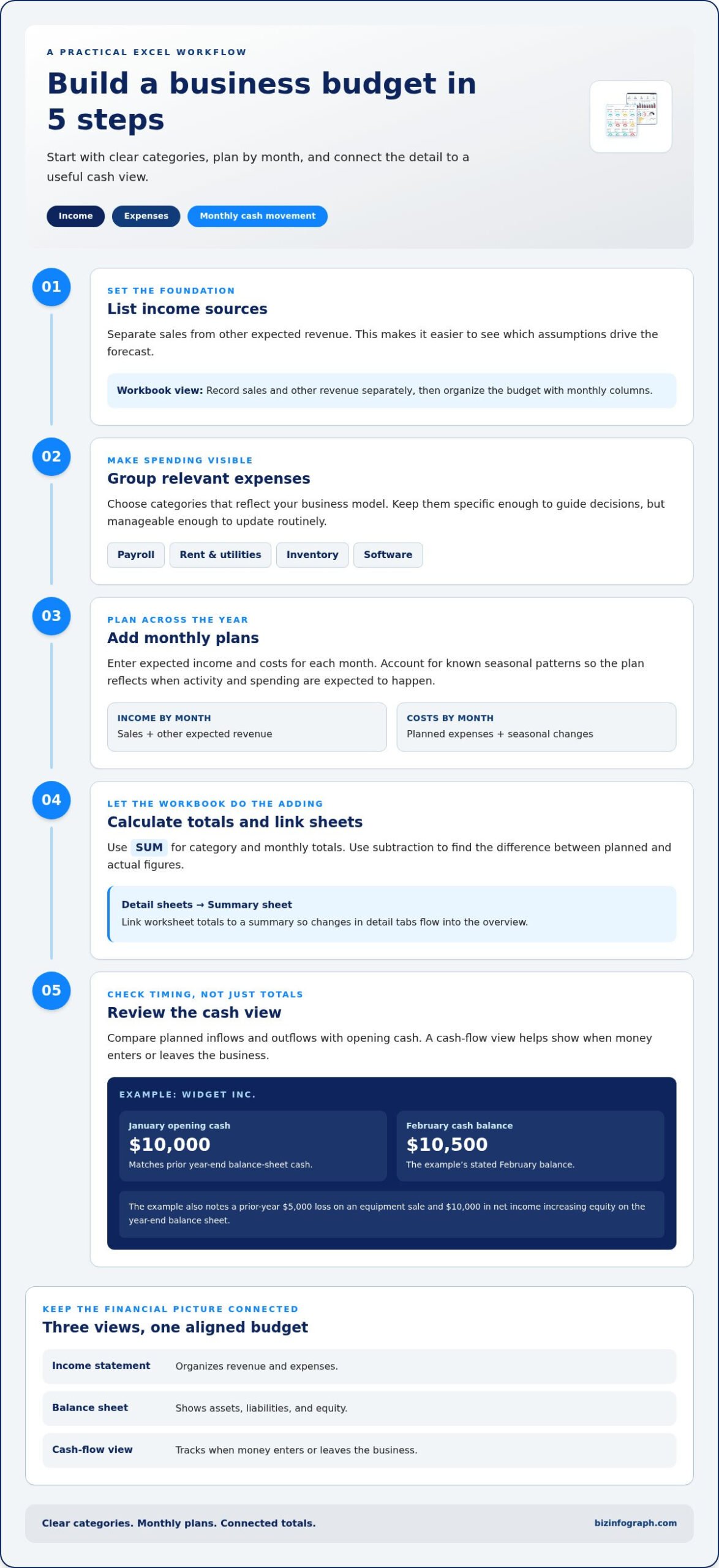
Build the workbook around the financial statements your business already uses. The income statement helps organize revenue and expenses, while the balance sheet shows assets, liabilities, and equity. A cash-flow view tracks when money enters or leaves the business. In the example, Widget Inc. begins January with $10,000 in cash, matching its prior year-end balance-sheet cash. Its prior year included a $5,000 loss on an equipment sale, and $10,000 in net income increases equity on the year-end balance sheet. The example’s February cash balance is $10,500. These connections help keep budget assumptions aligned with the company’s financial picture.
- List income sources. Separate sales and other expected revenue so you can see which assumptions drive the forecast.
- Group expenses. Include relevant categories such as payroll, rent, utilities, inventory, and software.
- Add monthly plans. Enter expected income and costs in each month, accounting for known seasonal patterns.
- Calculate totals. Use SUM formulas for category and monthly totals, then link detail worksheets to a summary sheet.
- Review the cash view. Compare planned inflows and outflows with opening cash to understand timing.
What Excel formulas should a business budget template use? Use SUM to total income and expenses, and subtraction formulas to find the difference between planned and actual figures. Link worksheet totals to a summary sheet so changes in detail tabs flow into the overview.
Business budget template Excel vs Google Sheets: which is better? Excel suits workbooks built around formulas, charts, and detailed worksheets. Google Sheets can be convenient when several people need to update a budget online. Choose based on your collaboration needs and spreadsheet workflow.
How to estimate revenue and expenses in a business budget? Base revenue estimates on sales patterns, planned activity, and seasonal changes. Forecast each expense category from expected operating needs, then revise assumptions as actual figures arrive.
Are there industry-specific business budget templates for Excel? Yes. Choose a layout that reflects your business model: a retailer may need sales, rent, utilities, and seasonal inventory, while a service business may emphasize payroll and project costs. SCORE financial planning templates can provide a starting structure to adapt.
What are common business budgeting mistakes and risks? Common mistakes include omitting expense categories, treating uneven revenue as consistent, and failing to update manually entered data. Excel can organize and visualize figures, but sound decisions still depend on keeping entries current.
For visibility, add an Excel chart to show how category totals shift across periods. Filters can narrow the view to selected costs as expense lines grow. Copilot can help turn selected figures into a short financial summary; compare its wording with the spreadsheet totals and source entries before sharing. A clear summary helps explain spending decisions and identify assumptions that need attention.
Typical budget benchmarks by expense category
Use expense benchmarks to spot categories that deserve a closer look, not as fixed targets for every company. The right figures depend on your business model, revenue mix, staffing, and operating costs. Compare each category with revenue over the same period. For example, calculate a monthly expense percentage by dividing that category’s monthly cost by monthly revenue, then format the result as a percentage.
Use these ranges as a starting point when reviewing your plan:
- Payroll and owner pay: 15% to 30% of revenue for product businesses, and 30% to 50% for service businesses.
- Rent and utilities: 2% to 10% of revenue.
- Cost of goods sold: 25% to 50% of revenue for product businesses.
- Marketing: 2% to 10% of revenue.
- Insurance, software, and professional services: 3% to 8% of revenue.
Read each benchmark in context. A product company may have inventory costs that a service firm doesn’t, while payroll can take a larger share of revenue in labor-intensive services. Rent also reflects how the business operates: a storefront and a remote consultancy have different space needs. If a percentage falls outside its range, inspect the costs and business choices behind it before changing the budget.
Give the workbook clear sections for income, direct costs, operating expenses, and a summary. Under income, record sales and other revenue separately. Under expenses, create distinct lines for payroll, rent, utilities, inventory or cost of goods sold, marketing, insurance, software, and professional services. Add categories that reflect actual spending, but avoid catch-all labels that hide useful detail. A consistent structure makes totals and period comparisons easier to review.
Make categorizing manageable with an Excel table. Use one row per transaction, with columns for date, description, category, amount, and month. Apply filters to view a category or period, and use consistent category names throughout. This reduces manual sorting and keeps similar expenses together. SUMIF can total amounts for a selected category, while a pivot table can summarize spending by category and month.
Review category percentages alongside actual dollar totals. A small percentage can still matter if it is rising steadily, while a larger cost may be essential to delivering the product or service. Add a chart to compare categories or periods, then use Excel dashboard layouts to make key budget comparisons easier to scan and share.
How to track business expenses in Excel?
Track income, expenses, and cash flow in one workbook, using a consistent record for each transaction. Include columns for date, description, category, planned amount, actual amount, and month. This layout lets you compare forecasts with spending and see how costs affect available cash. Keep revenue separate from expenses so monthly totals are easy to interpret.
Set up your Excel tracking process with these practical steps:
- Enter transactions consistently. Record each sale, bill, and payment using the same category names.
- Organize by month. Add a month field or separate monthly columns to summarize revenue and costs.
- Calculate totals. Use SUM for category and monthly totals, and subtract actual amounts from planned amounts to show variances.
- Filter the records. Excel filters help isolate a category, month, or selected cost when the list grows.
- Review cash flow. Compare expected inflows and outflows to understand the timing of available funds.
How to track actual spending against a business budget in Excel? Keep planned and actual amounts in separate columns, then calculate the difference for each category and month. Conditional formatting can highlight categories where actual spending exceeds the plan.
For a concrete example, a bakery budgets $3,200 per month for ingredients. It records actual ingredient costs of $3,650 and $3,700 in two consecutive months. Recording both figures against the same category makes the recurring overspend visible. The owner can then examine purchases, ingredient prices, and production needs before adjusting the next forecast.
A free expense budget template can provide a ready-made structure for income, expense categories, planned and actual figures, totals, and charts. Choose a workbook that lets you rename categories and enter monthly data manually. Excel can calculate and display figures, but you must enter and update the financial data. Keep receipts and transaction records organized so each entry has a clear basis.
Household expense budgeting uses similar methods: group income and costs, assign planned amounts, and compare them with actual spending. For a business, keep personal and company records separate. Business categories should reflect operations, such as sales revenue, payroll, rent, inventory, or software. This separation makes it easier to allocate funds to teams, projects, or campaigns and review their spending independently.
Finish each monthly update by checking for missing transactions and inconsistent category names. A chart can show how revenue and expense totals shift between months, while a summary sheet brings key figures together. Excel does not send automatic alerts when a business overspends, so use filters or conditional formatting to make budget exceptions visible during review.
Budget review and budget-versus-actual tracking
A useful review turns budget tracking into decisions, not just a record of past spending. Set up each budget sheet with planned and actual columns for every category and month. Add a variance column for actual minus planned, then label the difference favorable or unfavorable. For expenses, a positive variance usually means spending exceeded the plan; for revenue, it means income came in above forecast.
Use formulas to make each review consistent. If planned expenses are in column B and actual expenses are in column C, enter a subtraction formula in column D and copy it down. Use conditional formatting to highlight expense categories where actual costs exceed planned amounts. A linked summary sheet can pull totals from category worksheets, making it easier to see changes across the budget without recalculating every tab manually.
Look for patterns before changing the plan. Investigate any category that is more than 10% off in the same direction for two consecutive months. First check the underlying entries for missing transactions, duplicate records, or incorrect categories. If the numbers are accurate, decide whether the difference reflects a one-time event, a lasting cost change, or an unrealistic original estimate. Document the reason beside the variance so the next update has context.
For example, a two-percentage-point improvement in cost of goods sold on monthly revenue of $40,000 saves $800 per month. A budget review can reveal whether that shift comes from purchasing changes, product mix, or another operating factor. Use the finding to update assumptions, not simply to make the next forecast appear closer to actual results.
Make the review routine easy to repeat. A weekly 15-minute cash review can check upcoming receipts, near-term payments, and available cash. At month-end, update actuals, refresh formulas, and compare the full month against the plan. If your business has separate team or project sheets, customize the summary to show each area’s budget and variance alongside company totals.
Charts make changes easier to spot. A line chart can compare planned and actual spending across months, while a bar chart can show which categories account for the largest variance. Keep labels clear and use the same categories across periods. Charts help visualize trends, but confirm figures in the source sheets before presenting them.
Close each review with a specific action: keep the current plan, revise an assumption, or investigate a continuing gap. Record who owns the next step and update the relevant sheet. This creates a clear trail from the original budget to the decision, making the next review faster and more focused.
Free printable and Excel business budget templates
A free template is a starting framework, not a finished forecast. The selection of free Excel budgeting templates for 2026 can help you choose a format for monthly planning, operating expenses, or cash flow. Before entering figures, check that its categories match your business and that formulas cover the rows you’ll use. Templates still require manual entry and updates, so assign someone to keep each record current.
Choose a format based on how you’ll review and share the budget. An Excel workbook supports formulas, categories, charts, and editable assumptions. It can be shared online for real-time review and updates, or exported as a PDF for reporting. A printable version works for discussion or handwritten planning, but figures on paper won’t update linked totals. Use the workbook as the working file when calculations need to stay connected.
- Monthly operating budget: Use this format to plan recurring revenue and expenses by month.
- Department or project budget: Use separate sheets to allocate funds and compare plans across teams or campaigns.
- Cash-flow worksheet: Track expected inflows and outflows to understand when funds are available.
- Printable summary: Export a concise PDF when colleagues need a fixed report rather than an editable workbook.
Customize a downloaded template before relying on its totals. Rename categories to match your spending, remove irrelevant lines, and test a formula by changing an input. A useful workbook separates revenue, direct costs, operating expenses, and profit. The typical profit range given for businesses is 5% to 20% of revenue, but treat it as a reference, not a target that fits every business.
Seasonal revenue needs a thoughtful baseline. For irregular income, use the worst rolling three-month revenue stretch from the previous 12 months as a baseline. Then build a cash reserve equal to two to three months of baseline expenses. In months above baseline, one example allocation assigns 40% of surplus to cash reserves, 30% to owner-pay catch-up, 20% to growth spending, and 10% to an additional tax set-aside. Adapt the template’s categories to show those choices separately.
Use Excel formulas to calculate totals, filters to isolate a department, and charts to make monthly changes visible. Keep a printable PDF for the reporting view and the workbook for active tracking. For clearer budget visuals, explore tools for presenting spreadsheet data alongside your figures.
Biz Infographs: PowerPoint Infographic Templates
Biz Infographs helps turn budget figures into clear visuals with PowerPoint Infographic Templates and Excel Dashboard Templates. Use an Excel dashboard for a visual overview of revenue, expenses, and budget variances. PowerPoint infographic templates can help present those findings in a polished report for colleagues or stakeholders.
For teams working across data tools, Power BI Templates offer another way to present business information, while Automation Templates support repeatable spreadsheet workflows. Choose the format that fits the task: tracking figures, reviewing trends, or communicating a budget decision. These resources complement your workbook, while your budget entries and assumptions remain the basis for analysis.
Ready to make your financial insights easier to present? Contact Biz Infographs to explore the right template for your work.
Turn your budget into a clearer next move
A budget becomes more valuable when it helps your team decide what to do next. Treat a business budget template for Excel as a working tool: use the figures to guide decisions, then make the key insights easy to understand. A clear visual can help a department discuss priorities, explain a change, or align around a plan.
When you’re ready to present those insights, Biz Infographs offers Excel Dashboard Templates for visualizing data, PowerPoint Infographic Templates for presentations, and Power BI Templates for data reporting. Choose the format that suits how your audience needs to review the information, while keeping your spreadsheet as the source for the underlying figures.
Contact Biz Infographs for support with templates for presenting your financial insights. Take the next step with a budget that helps you move from tracking numbers to communicating decisions with confidence.
Frequently Asked Questions
How to link multiple worksheets to create a consolidated business budget?
Use formulas on a summary sheet to pull totals from each department or project worksheet. For example, reference the monthly total from the sales sheet and the total from the operating-cost sheet in separate summary cells, then calculate the overall result. Keep worksheet names and category labels consistent, and verify the summary after adding a new sheet. This makes the consolidated view easier to maintain as budgets change.
What’s inside an Excel budget template?
An Excel budget template typically includes spaces for income and expense entries, time periods, formulas, and a summary. Some workbooks also include charts, contingency planning, and fields for comparing forecasts with actual results. Before using one, check whether formulas cover the cells you’ll fill in. For example, adding an expense row below a formula’s range may leave that cost out of the total.
How to compare planned and actual budget amounts in Excel?
Enter planned and actual figures in separate columns, then calculate the variance by subtracting the plan from the actual amount. To show the variance as a percentage, divide it by the planned figure; handle a zero plan separately to avoid a divide-by-zero error. Conditional formatting can flag unfavorable variances, while a note beside each exception can record its cause and next action.
Where can I download a free business budget template for Excel?
Choose from the free Excel budgeting templates for 2026 presented with this guide. Select a workbook that fits your business structure, then review its formulas and category labels before entering figures. A useful test is to change a sample input and confirm that the related total updates. Save an untouched copy first, so you can return to the original layout if needed.
What should a small business budget template include?
A small business budget should distinguish recurring costs from one-time purchases. Include fields for transaction date, category, description, amount, and payment status, plus a way to identify the responsible department or project. A separate assumptions area can document the reasoning behind key revenue or cost estimates. These details help explain unusual movements during reviews and support clearer handoffs between coworkers.
How to create a business budget in Excel step by step?
Create a new workbook, choose a monthly layout, and tailor the categories to your operations. Enter forecast assumptions, add formulas for totals, and check that each formula includes all relevant rows. Use a summary sheet to surface the figures you’ll review. Before relying on the workbook, test it with sample entries, save the file, and set a recurring time to update actual data.