

A well-structured recruitment tracker Excel template shows where every candidate stands and what needs to happen next. It brings candidate details, interview updates, action owners, and follow-up dates into one view, instead of leaving them scattered across files and email.
Excel can be a practical fit when your hiring volume and collaboration needs are manageable. To keep the tracker useful, define your stages, agree on who updates each field, and review next steps regularly.
This guide explains which fields to track, how to organize vacancies and candidates into a workable pipeline, and how to review progress without losing sight of upcoming actions. You’ll also learn how to decide whether a spreadsheet fits your workflow or whether a more structured system may better support it. The goal is a hiring view that’s easy to maintain, share, and use for decisions.
Key Takeaways
- Use a recruitment tracker excel template to connect candidate records with vacancies, interview activity, and clear next steps.
- Choose one table or separate candidate, vacancy, and interview tables based on how your hiring records relate.
- Compare Excel with an ATS by looking at hiring volume, collaboration needs, reporting, and process complexity.
- Test dropdowns, dates, filters, formulas, and summary outputs with sample records before relying on the workbook.
- Review stage counts and overdue actions alongside hiring outcomes to turn tracker data into focused decisions.
What a Recruitment Tracker Excel Template Should Help You See
A recruitment tracker is a structured spreadsheet for monitoring open vacancies, candidates, hiring stages, and the next action required for each application. Its purpose isn’t simply to store names. It links each candidate to a role, identifies who owns the follow-up, and helps you spot stalled decisions or upcoming interviews.
A recruitment tracker is a manually maintained spreadsheet that organizes hiring records and next steps. Unlike a full applicant tracking system, it doesn’t provide a dedicated platform for managing the broader recruitment workflow. An Applicant Tracking System (ATS) is a separate category of software designed to support recruitment processes. Excel can make information visible, but your team is responsible for keeping the workbook accurate and coordinating updates.
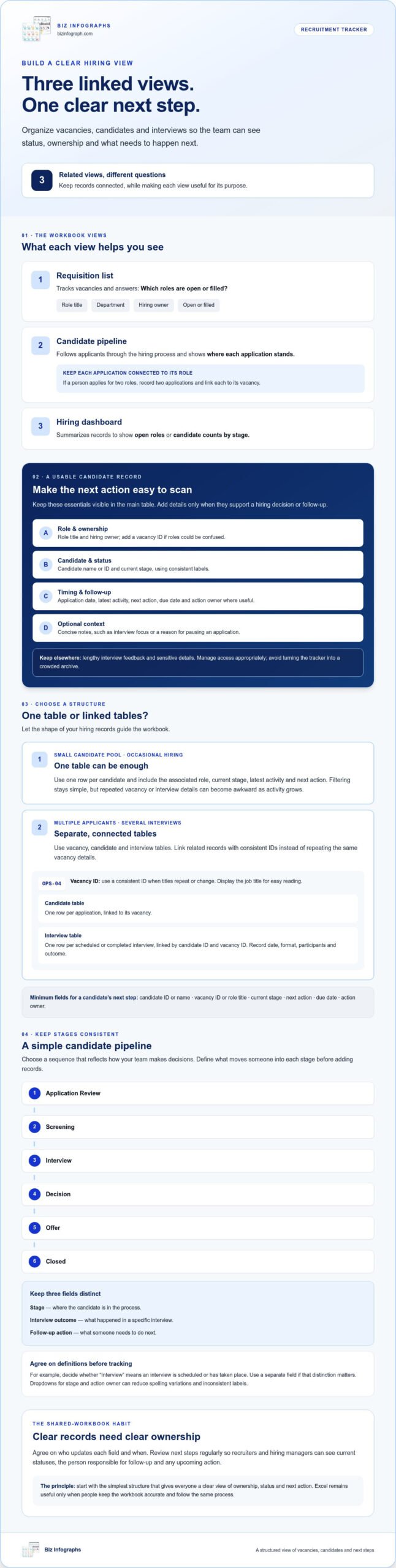
Three related views serve different purposes. A requisition list tracks vacancies, such as role title, department, hiring owner, and whether a position is open or filled. A candidate pipeline follows applicants through stages, from application to interview, offer, or closure. A hiring dashboard summarizes information from those records, such as open roles or candidate counts by stage. These views can sit in the same workbook, but they answer different questions.
Used consistently, the tracker becomes a shared source of truth. Recruiters and hiring managers can review current statuses, identify the person responsible for the next step, and rely less on scattered emails or personal notes. Agree on who updates each field and when. The workbook supports reliable handoffs only when people follow the same process.
Which recruitment information belongs in a tracker?
Start with fields that help someone understand a record and take action. Keep the essentials visible in the main table, then add detail only when it supports a hiring decision or follow-up.
- Role and ownership: role title and hiring owner, plus a vacancy ID if roles could be confused.
- Candidate and status: candidate name or ID and current stage, using a consistent set of stage labels.
- Timing and follow-up: application date, latest activity, next action, due date, and action owner where useful.
- Optional context: concise notes, such as an interview focus or a reason for pausing an application.
Keep lengthy interview feedback and sensitive details elsewhere, with access managed appropriately. The tracker should make the next step easy to scan, not become a crowded archive.
Who benefits most from an Excel hiring tracker?
A recruitment tracker excel template can suit a solo recruiter, a small hiring team, or an organization that hires occasionally and follows a straightforward process. Excel offers a familiar, flexible way to see vacancies and candidate progress without building a complex system. For a team, shared stage definitions and named action owners make handoffs and status reviews more consistent.
The right structure depends on hiring volume and process complexity, not team size alone. If multiple roles, interviewers, and ongoing changes make updates difficult to coordinate, a spreadsheet may become harder to maintain. Start with the simplest structure that gives everyone a clear view of ownership, status, and next action.
How to Structure Candidate, Vacancy, and Interview Tracking in Excel
Build the workbook around the records your team needs to update. For occasional hiring with a small candidate pool, one table may be enough: use one row per candidate and include the associated role, current stage, latest activity, and next action. This makes filtering simple, but repeated vacancy or interview details can become awkward as activity grows.
Use separate tables when roles have multiple applicants or candidates have several interviews. A practical workbook might include a vacancy table, a candidate table, and an interview table. Give each vacancy a consistent ID, such as OPS-04, and use that ID in related candidate records. In the interview table, use one row per scheduled or completed interview, linked by candidate ID and vacancy ID. This avoids copying the same vacancy information into every record and makes interview history easier to review.
Minimum fields for a candidate’s next step: candidate ID or name, vacancy ID or role title, current stage, next action, due date, and action owner.
Create clear candidate pipeline stages
Choose a simple sequence that reflects how your team makes decisions, such as Application Review, Screening, Interview, Decision, Offer, and Closed. Define what moves a candidate into each stage before adding records. For example, decide whether “Interview” means an interview is scheduled or has taken place. Use a separate field if that distinction matters to your team.
Keep three ideas distinct: stage shows where the candidate is in the process; interview outcome records what happened in a specific interview; follow-up action says what someone needs to do next. Dropdowns for stage and action owner can reduce spelling variations and inconsistent labels. Use a short, agreed list, and include an option such as “Other” only if the team knows how to handle it.
Connect vacancies and interviews to candidate records
A job title can link records if it’s unique and stable. If titles repeat or change, use a vacancy ID and display the job title for easy reading. In a candidate table, keep one row per application. If a person applies for two roles, record two applications and link each to its vacancy instead of combining them in one row.
For interviews, record details that help coordinate or review the process: date, format, participants, and outcome. Each interview is its own event, so don’t squeeze several rounds into one cell. Avoid copying detailed personal information or interview notes across sheets. Keep the tracker focused and refer clearly to any separate record your team maintains.
A well-structured recruitment tracker excel template relies on consistent identifiers and one record per row. Recruitment technology continues to evolve, as explored in Northeastern University’s Top Trends in Recruitment Technology, but a spreadsheet still depends on basic discipline: defined fields, reliable links, and clear ownership. To present hiring summaries alongside your working data, explore downloadable Excel dashboard templates.
Excel Tracker vs. ATS: Choose the Right Hiring Workflow
The right choice depends less on a fixed team-size or candidate-count threshold and more on how your hiring work gets done. A recruitment tracker excel template can provide a clear, flexible view when responsibilities and updates are straightforward. An applicant tracking system (ATS) may suit a workflow that requires coordinated activity, detailed reporting, or more structured access controls.
Use this comparison to assess what your current process needs. Capabilities vary between systems, so treat the ATS column as functions to evaluate, not a guarantee that every platform provides them.
| Workflow need | Excel tracker may fit when | Consider an ATS when |
|---|---|---|
| Team size | One recruiter or a small group can agree on ownership and update routines. | Several recruiters, hiring managers, or departments need coordinated access. |
| Hiring volume | Active roles and candidate records are manageable to review and maintain manually. | Ongoing recruitment creates frequent updates across many roles and applicants. |
| Collaboration | People can follow a shared workbook process and know who updates each record. | Handoffs, simultaneous work, or activity visibility need more structured support. |
| Reporting | Basic filters and summaries answer the team’s regular status questions. | Reports need to be produced regularly from multiple stages, roles, or teams. |
| Process complexity | Stages and approvals are consistent and relatively simple. | Workflows involve more complex steps, permissions, or recurring coordination. |
When an Excel recruitment tracker is a practical fit
Excel can work well for occasional hiring or a manageable set of active roles, especially when the team has agreed on stages and one person owns workbook upkeep. Decide who can edit or view the file, where it’s stored, and how changes are shared. Recruitment records can contain sensitive information, so use deliberate permissions and sharing practices rather than treating the workbook as an unrestricted team document.
When to consider more structured applicant tracking
Repeated manual updates, duplicate candidate records, missed handoffs, or time-consuming reporting are useful signals to review the workflow. Map where each record is entered, who needs access, and which decisions are delayed. Then assess whether a system’s automation, access management, and activity history address those specific needs. Choose features to solve real process friction, rather than adopting them for their own sake.
Before deciding, note where the current approach requires extra work: reconciling versions, chasing status updates, rebuilding reports, or clarifying who owns a follow-up. If these issues are occasional and easy to resolve, a controlled spreadsheet may remain practical. If they recur and affect coordination or visibility, compare more structured options against the process you’ve mapped. This keeps the decision grounded in workflow needs rather than an arbitrary candidate limit.
Set Up and Maintain a Recruitment Tracker in Excel
A dependable recruitment tracker excel template starts with a clear process, not a collection of colors and formulas. Build the workbook around the decisions your team needs to make, then test it before entering live candidate records. Follow these steps to keep the sheet readable and dependable as hiring activity changes.
- Define the stages. Agree on candidate stages, what each one means, and which outcomes close a record. Consistent labels help the team interpret and summarize data in the same way.
- Choose the fields and layout. Add only the columns needed to identify a vacancy and candidate, understand current status, and manage the next step. Use clear headings, one date format, filters, and a frozen header row so labels stay visible as you scroll.
- Separate inputs from calculations. Make fields people enter, such as candidate stage or action owner, visually distinct from formulas and summary visuals. Use dropdown validation for recurring values like stages and hiring owners to reduce spelling variations and simplify filtering.
- Assign update ownership. Name who maintains the workbook and who updates candidate or interview details. Set a recurring pipeline review that suits your hiring rhythm. Use it to resolve overdue actions, confirm ownership, and correct outdated statuses.
- Test with sample records. Enter fictional examples covering different stages, dates, vacancies, and outcomes. Check that dates sort correctly, dropdowns show the agreed choices, filters return the right records, formulas calculate as intended, and summary outputs reflect the sample data.
- Set data-handling rules. Agree how records are named, how duplicates are checked, and who owns updates. Limit access to appropriate team members, follow your organization’s data-handling policies, and review stale records according to its retention practices.
Build a usable Excel layout
Keep the main working view scannable. Place identifying fields first, followed by stage and next-action information, then optional context. Consistent date formatting makes deadlines and activity dates easier to sort reliably. Filters help users focus on a role, owner, or stage, while a frozen header keeps column labels in view. Protect calculated fields from accidental edits where your workbook setup allows it, and keep summary visuals separate from the entry area.
Protect data quality and candidate information
Maintenance is part of the design. Decide how often updates are expected, who checks for duplicate applications, and how closed or inactive records are reviewed. A short recurring review can catch missing owners and stale next actions before they undermine the pipeline. Keep candidate details limited to what the team needs for its hiring process, and manage workbook access deliberately.
A reliable spreadsheet handoff includes a named owner, consistent stages, clear update rules, controlled sharing, and tested dates, dropdowns, filters, formulas, and summaries. To present spreadsheet insights clearly, explore Excel dashboard templates.
Turn Recruitment Data into a Clear Hiring Review
A hiring review should help the team decide what needs attention, not simply display a wall of numbers. A recruitment tracker excel template can support a concise review by bringing together open roles, candidate counts by stage, overdue next actions, and recent hiring outcomes. Start with the questions the team needs answered: Which roles need attention? Where are candidates waiting? What actions are overdue? Which roles have reached a decision?
Separate activity measures from outcome measures. Activity measures describe what is happening in the process, such as interviews scheduled, candidates awaiting feedback, or follow-ups past their due date. They can reveal bottlenecks and coordination needs. Outcome measures describe results, such as roles filled or applications closed at each stage. They help the team review what the process produced, but don’t explain the reasons behind a result on their own.
Counts need context to be useful. Label the reporting period, specify whether a number is a current snapshot or a total over time, and define what qualifies for each count. For example, agree on what counts as an “open role,” and clarify whether a stage count includes candidates whose records are paused. Avoid comparing teams or periods that use different definitions.
Choose hiring measures that support decisions
Keep the review focused on a small set of measures tied to real hiring questions. For each measure, agree on its definition, assign someone to investigate it, and decide what action might follow. A count of overdue feedback, for example, becomes useful when the team can identify who will follow up and whether a specific role needs a decision. Measures without an owner or a next question can add noise instead of insight.
- Stage counts: Where are candidates currently concentrated, and does a role need a pipeline review?
- Open roles: Which vacancies remain active, and who owns the next hiring decision?
- Overdue actions: Which follow-ups have passed their due date, and what is blocking progress?
- Outcomes: How many roles were filled or closed during the stated period, and what context helps explain the result?
Use the same definitions from one review to the next. If a stage changes or the reporting period shifts, note it so readers don’t mistake a change in measurement for a change in hiring performance.
Make spreadsheet reporting easier to present
Design the review for quick interpretation. Use clear labels, restrained formatting, and charts suited to the comparison. A bar chart can compare counts across stages, while a simple trend line can show how a measure changes across reporting periods. Keep the visual hierarchy focused on decisions and exceptions that need discussion. Decorative elements should never compete with the information.
Professional Excel dashboards can make business data easier to scan and present when the underlying records and definitions are reliable. For broader guidance on choosing a reporting layout, explore Excel dashboard templates. A clear hiring review gives the team a shared view of progress, questions, and next decisions.
Make Your Hiring Data Work Harder
Turn the tracker into a dependable part of how your team makes hiring decisions. Start with an upcoming review, notice which information prompts useful action, and refine the workbook around what people need to see. As reporting needs grow, a clear visual layout can help decision-makers engage with the data instead of hunting through rows.
A recruitment tracker excel template is most valuable when it supports a process your team can maintain. Keep improving how you present hiring information, and let the workbook evolve with your workflow rather than adding complexity for its own sake.
For professional reporting layouts that help present business data clearly, explore Excel dashboard templates from Biz Infographs. The downloadable templates are designed for professional use, and customers receive free lifetime updates.
Explore Biz Infographs’ downloadable Excel dashboard templates to create a clearer view of your hiring data.
Frequently Asked Questions
What should a recruitment tracker Excel template include?
A recruitment tracker Excel template should capture enough information to identify each application and clarify its current status. Include a vacancy reference, candidate identifier, stage, key activity dates, next step, and responsible owner. Add interview outcomes if they inform a decision. If someone applies for multiple roles, track each application separately. Using an internal candidate ID in summary views can also reduce unnecessary exposure of names during routine reporting.
Can I use a recruitment tracker in Google Sheets?
Yes, you can often import an Excel workbook into Google Sheets, but check how conversion affects the features your team relies on. Make a copy first, then test a dropdown, a date calculation, a filter, and any chart or summary formula. For example, confirm that a stage-count summary still updates after you change a sample candidate’s stage. Once tested, establish one shared working file to avoid diverging versions.
How do I calculate time to hire in Excel?
Calculate time to hire by subtracting the agreed start date from the agreed end date, after defining what those events mean for your organization. For example, if the start is the date a candidate enters the process and the end is the date they accept an offer, store both as valid Excel dates and subtract the start from the end. Check sample results manually, and don’t compare teams using different definitions.
Is an Excel recruitment tracker secure for candidate information?
An Excel tracker’s security depends on how the file is stored, shared, and maintained. Limit access to people who need the information, avoid placing unnecessary sensitive details in the workbook, and follow your organization’s approved data-handling and retention policies. Hiding a sheet or protecting cells isn’t the same as controlling who can access the file. For organization-specific obligations, rely on approved internal guidance and relevant legal advice.
When should a company move from Excel to an applicant tracking system?
Consider a more structured system when recurring spreadsheet issues interfere with hiring work. Before selecting one, document a typical role from approval through closure, note where information is entered or duplicated, and identify who needs access at each step. Then assess whether potential tools address those specific gaps, such as tracking changes or reducing repeated data entry. A small pilot using a representative workflow can reveal practical fit before a broader transition.
How can I prevent duplicate candidates in an Excel hiring tracker?
Reduce duplicates by standardizing how candidate details are entered and defining which fields help identify a possible match. A consistent email address or internal candidate ID can support checks, while filters or Excel’s duplicate-highlighting tools can flag records for review. Don’t automatically merge similar names: one person may have separate applications for different roles. Assign someone to verify flagged records and preserve the correct application history.