

Free Excel templates can track asset allocation, but price updates depend on how the workbook is set up and may require refreshing. An investment portfolio tracker in Excel can calculate each holding’s share of the portfolio when it records current values alongside the total. Choosing a template is therefore less about appearance and more about how it handles prices, calculations, and portfolio views.
It’s easy to assume every spreadsheet refreshes market data or calculates allocation for you. In practice, templates differ: some rely on manual price entry, while others use Excel features to retrieve stock information. Allocation summaries also depend on accurate figures and working formulas.
This guide explains how Excel handles live and historical stock prices, what a tracker can calculate, and how to compare free investment templates by their features. Use the comparison to find a setup that makes your holdings easier to review and maintain.
Key Takeaways
- Compare templates by how they handle stock prices, including whether values are entered manually or refreshed through Excel features.
- Learn when Excel’s Stocks data type and STOCKHISTORY function can support current-price and historical-data tracking.
- Organize holdings by asset class, sector, or geography to make allocation easier to review.
- Use a checklist of portfolio fields and workbook structure to find a free template that fits your tracking needs.
1. Do these spreadsheets update stock prices automatically?
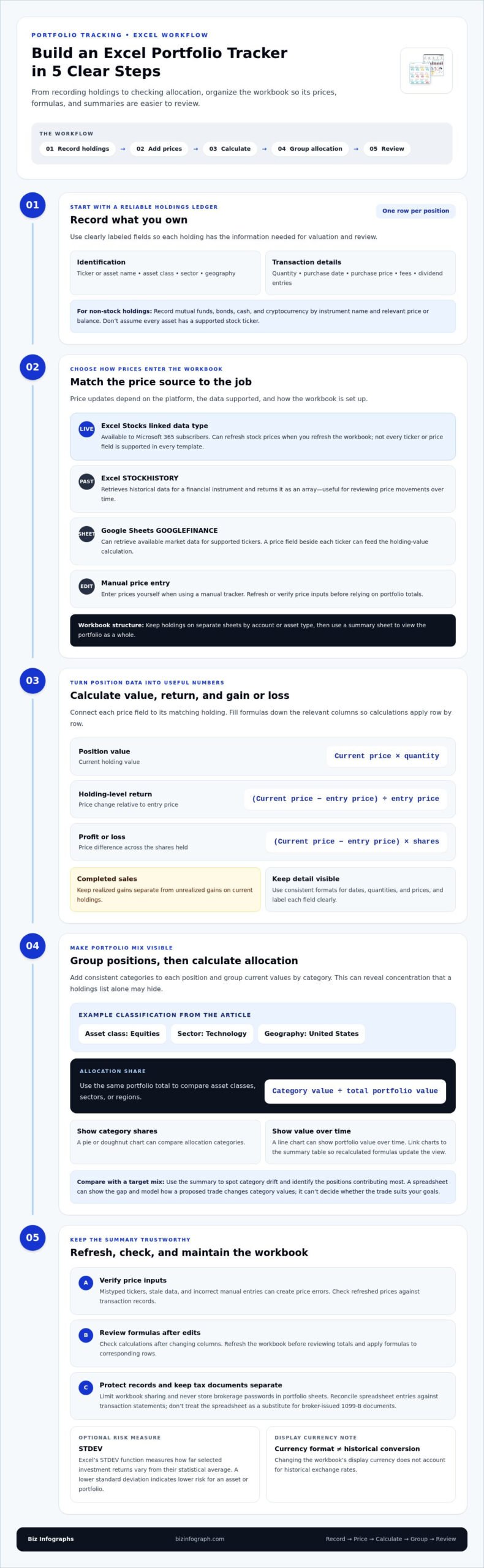
Some spreadsheets can refresh stock prices automatically, but the feature depends on the platform and setup. In Excel, Microsoft 365’s Stocks linked data type can refresh prices when you refresh the workbook. Google Sheets can retrieve supported market data with GOOGLEFINANCE. Neither approach means every ticker or price field will update in every template.
For stock portfolio tracking in Google Sheets, add a price field beside each ticker and use it to calculate each holding’s current value. In Excel, linked stock data can fill relevant fields, while a manual tracker requires you to enter prices yourself. Organize holdings on separate sheets by account or asset type, then use a summary sheet to review the portfolio as a whole.
To compare Excel portfolio trackers with Google Sheets and portfolio tracking apps, assess price refreshes, supported holdings, allocation summaries, and how easily you can edit formulas. A free Google Sheets investment tracker may be convenient for collaborative access, while an Excel workbook offers flexible sheets and formulas. Choose the format that fits your update routine and preferred level of control.
Excel trackers can organize U.S. tax records, including purchase dates, quantities, and cost basis, but don’t treat a spreadsheet as a substitute for broker-issued 1099-B documents. Keep those records separate and reconcile spreadsheet entries against transaction statements before using totals for tax preparation.
Build an Excel tracker in a clear sequence: create columns for ticker, quantity, and purchase price; add current price and purchase date; then calculate position value, return, and profit or loss. Add a summary sheet to combine individual holdings. For example, fill formulas down the price and return columns to apply the calculations to each row.
Price errors can result from a mistyped ticker, stale data, or an incorrect manual entry. Check refreshed prices against transaction records, and review formulas after changing columns. For security, limit workbook sharing and never store brokerage passwords in portfolio sheets. A consistent review routine helps catch errors before they distort allocation totals.
2. Excel Stocks data type and STOCKHISTORY function
Excel offers two useful tools for stock monitoring, but they serve different purposes. The Stocks linked data type is available to Microsoft 365 subscribers and can refresh stock prices when you refresh the workbook. STOCKHISTORY retrieves historical data for a financial instrument and returns it as an array, making it useful for reviewing price movements over time.
In Google Sheets, GOOGLEFINANCE can retrieve available financial data for supported tickers. Treat values returned by any platform as inputs to your workbook, not as a complete record of every investment detail. Choose data that supports your decisions, such as current prices for valuation or past prices for performance review.
Build a useful tracker around identifiers and transaction details: ticker or asset name, quantity, purchase date, purchase price, fees, and dividend entries. Use separate columns for realized gains from completed sales and unrealized gains on current holdings. For mutual funds, bonds, cash, and cryptocurrency, record the instrument name and relevant price or balance. Don’t assume every asset has a supported stock ticker.
For monitoring, connect each price field to its matching holding and refresh the workbook before reviewing totals. Then drag formulas into adjacent cells to apply calculations to corresponding rows. Excel’s STDEV function can measure how far selected investment returns vary from their statistical average. A lower standard deviation indicates lower risk for an asset or portfolio.
Keep working calculations organized without cluttering the reader’s view. Hidden rows and columns remain available to formulas, so supporting data can stay out of sight while summary fields remain visible. Apply consistent number formats to dates, quantities, and prices, and label each field clearly. Changing the workbook’s display currency does not account for historical exchange rates.
For a polished visual summary alongside detailed tracking, consider Excel dashboard layouts that help organize key figures.
3. Can I track asset allocation with these templates?
Yes. Add asset class, sector, and geography columns to each position, then group current values by category. For example, label a holding as equities, technology, and United States. Calculate each position’s value from its current price and quantity, then compare category totals with the portfolio total. This reveals concentration that a holdings list alone can hide. Use categories consistently according to your chosen classification.
For allocation, divide a category’s value by the total portfolio value and display the result as a share. Repeat the calculation for asset classes, sectors, or regions using the same total. A chart can make those shares easier to compare: use a pie or doughnut chart for allocation categories and a line chart to show portfolio value over time. Link the chart to the summary table so updated positions appear when formulas recalculate.
Use the summary to compare current allocation with your target mix. If a category has drifted from that target, identify which positions contribute most before deciding whether to rebalance. A spreadsheet can show the gap and model how a proposed trade changes category values, but it can’t decide whether that trade suits your goals. Record the trade in the holdings data so updated quantities flow into the next allocation calculation.
Excel can calculate holding-level return by subtracting the entry price from the current price, then dividing by the entry price. Profit or loss is the price difference multiplied by the number of shares. For portfolio performance, time-weighted returns measure performance across periods while reducing the effect of contributions and withdrawals; money-weighted returns account for the timing and size of cash flows. Choose the method that answers your question and label the chart accordingly. Separate return calculations from allocation charts to keep performance and portfolio composition clear.
4. Free Excel investment tracker templates
A free template is useful when its structure matches how you review investments. Start by checking its columns: ticker, quantity, purchase price, purchase date, and current price support a basic holdings record. Then look for profit-and-loss calculations, return fields, and a summary that brings positions together. A clean design matters, but accurate, understandable formulas matter more.
Compare templates by how they organize holdings and handle expansion. One workbook can use a separate sheet for each stock, while a summary sheet combines the holdings for an overall view. An example portfolio spreadsheet compiles data for 11 stocks. That layout can suit a focused portfolio, but check whether its rows and formulas can accommodate your own assets without breaking summary totals.
Next, inspect how data is entered. A practical tracker lets you add a position by entering its ticker, quantity, and purchase price, then shows where to add dates and other transaction details. Trace a sample position from its input cells to the summary. If a formula is hard to follow or an important field is missing, adapting the template may take additional spreadsheet work.
Finally, compare the view you’ll use regularly. Allocation categories, charts, and clearly labeled totals can make a workbook easier to interpret, while hidden calculation rows may keep supporting figures out of sight. Before relying on a template, duplicate it and test an example entry. Confirm that formulas extend to new rows and that the summary reflects added holdings. Choose the free tracker that makes its inputs, calculations, and portfolio overview easiest for you to maintain, rather than the one with the most decoration. For a clearer visual presentation of spreadsheet data, explore Excel Dashboard Templates.
Biz Infographs: PowerPoint Infographic Templates
Biz Infographs offers PowerPoint Infographic Templates for presenting investment information in a clear visual format. Once your spreadsheet tracks holdings and allocation, a visual summary can help explain the portfolio’s structure to an audience without replacing the underlying calculations.
For analysis that stays in spreadsheets, Excel Dashboard Templates and Excel Charts provide ways to present data in Excel. Power BI Templates and Automation Templates offer other formats for working with data and spreadsheet processes. Choose the option that fits how you plan to review or share your investment information.
If you’re ready to turn portfolio figures into a more polished presentation, explore Biz Infographs’ templates or contact Biz Infographs.
Make your portfolio data work for your next decision
A tracker becomes more valuable when it supports a clear purpose. Decide what you want to understand before adding fields: portfolio balance, exposure, performance, or information for a review. That focus keeps an investment portfolio tracker in Excel useful instead of turning it into a workbook full of numbers you rarely use.
Set a regular review habit that fits your investing approach. Use each review to note changes, record the assumptions behind your analysis, and identify questions that need further attention. A concise visual presentation can make your findings easier to share with an audience, while the underlying spreadsheet remains your working record.
When you’re ready to shape investment information into a polished presentation or dashboard, contact Biz Infographs for help. Take the next step with confidence and build a clearer view of the decisions ahead.
Frequently Asked Questions
Can I track asset allocation with these templates?
Yes, provided you categorize holdings consistently and include every position in the portfolio total. For example, decide whether a broad-market fund belongs under equities alone or also under a sector label. Use one classification for each chart, and avoid adding overlapping categories together. This gives you useful views by asset class, sector, or geography without accidentally counting the same holding twice.
Do these spreadsheets update stock prices automatically?
Some trackers do, depending on the workbook’s data connections and the spreadsheet platform. Keep the actual purchase price in a separate field from any refreshed quote, since the figures serve different purposes. A displayed market price is a snapshot, while the purchase price records your transaction. If a quote seems unexpected, compare the ticker and price with your brokerage statement before changing portfolio calculations.
Need a more advanced stock portfolio tracker?
Build on a basic holdings view with a transaction log that records buys, sales, and cash movements separately. This creates a clearer audit trail when a position changes over time. You can also create account-level summaries before combining them into a household view. For deeper analysis, add a benchmark comparison, but label its dates and calculation method so the comparison remains meaningful.
What other templates pair well with an investment tracker?
A dashboard is useful for a compact view during regular reviews, while a presentation infographic can help explain findings to an audience. Power BI templates may suit analysis that needs a separate reporting format. Keep the spreadsheet as your detailed working record, and use the companion format to highlight only the measures relevant to the meeting or decision.
What’s the best free investment tracking spreadsheet?
The best choice is the one that supports your holdings and review habits without making routine updates difficult. A long-term investor may prioritize transaction history and income records, while someone focused on allocation may need clear category summaries. Before adopting a workbook, test it with a copy of your data and confirm that its outputs answer the questions you use to guide your reviews.
How to import stock and ETF prices into Excel using Stocks data type or Power Query
In Excel, use the Stocks linked data type, available to Microsoft 365 subscribers, to retrieve stock prices, then refresh the workbook. The article provides no instructions for importing prices with Power Query.