

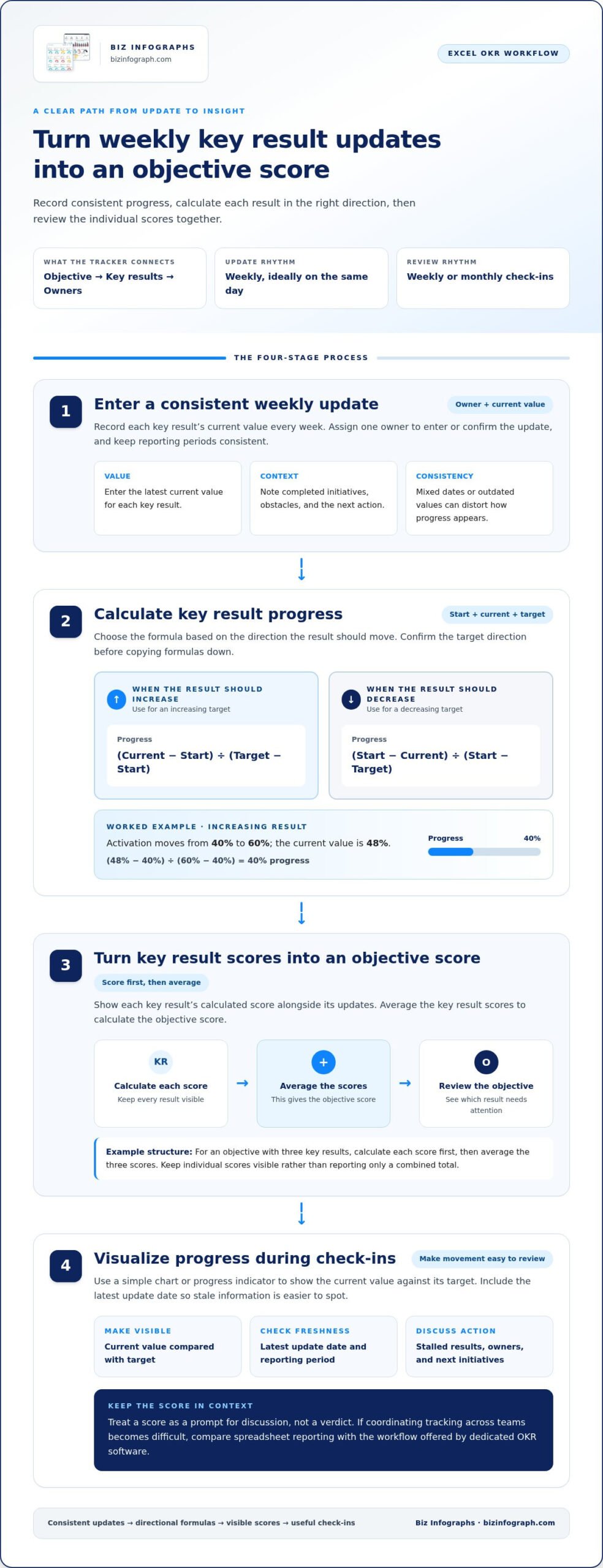
An OKR tracking template in Excel gives your team one place to record objectives, measurable key results, owners, and weekly updates. Calculate key result progress as (current value − start value) ÷ (target value − start value); when the target decreases, use (start value − current value) ÷ (start value − target value). Average the key result scores to calculate the objective score.
Tracking OKRs in a spreadsheet can make progress easier to review without adding another tool to your workflow. A useful template does more than list targets: it clarifies updates and helps you spot results that are moving or stalled.
This guide explains what to include in an Excel OKR tracker, how to set up progress formulas, and how to keep updates consistent. It also covers when a spreadsheet may be sufficient and when growing coordination needs may call for automated OKR software.
Key Takeaways
- Give each key result a clear owner and connect it to practical initiatives so progress updates lead to action.
- Set a focused number of objectives and measurable key results to keep priorities clear and trackable.
- Choose a spreadsheet layout that brings goals, responsibilities, progress, and useful notes together in one view.
- Review how updates and coordination are working as your team grows to recognize when automated tracking may be a better fit.
How do you calculate OKR progress in Excel?
Build a tracker that connects each objective to measurable key results, an owner, initiatives, and current results. Update it weekly, calculate progress with formulas, and review the scores during check-ins.
-
Enter weekly progress updates
Record each key result’s current value every week, ideally on the same day, and assign one owner to enter or confirm the update. Add a brief note on completed initiatives, obstacles, and the next action so the numbers have useful context. Keep reporting periods consistent: mixed dates or outdated values can make progress look stalled or stronger than it is.
-
Track key result progress with formulas
Enter a starting value, current value, and target for each key result. For a result that should increase, calculate progress as
(current value - start value) / (target value - start value). If the result should decrease, use(start value - current value) / (start value - target value). For example, moving activation from 40% to 60% with a current value of 48% equals 40% progress. Confirm the target direction before copying formulas down. -
Record achievement scores
Show each key result’s calculated score alongside its weekly updates, then average the scores to find the objective score. For example, if an objective has three key results, calculate each score first and average them. Keep the individual scores visible rather than reporting only a combined total. This makes it easier to see which result needs attention and who owns the next initiative.
-
Visualize progress during check-ins
Use a simple chart or progress indicator to make changes visible during weekly or monthly check-ins. Show the current value against its target and include the latest update date so the team can spot stale information. Discuss stalled results, their owners, and the next initiatives instead of treating a score as a verdict. If coordinating tracking across teams becomes difficult, compare spreadsheet reporting with the workflow offered by dedicated OKR software.
What are Objectives and Key Results?
Write objectives to describe the change your team wants to achieve, then use measurable key results to show whether it happened. This structure helps teams connect company priorities with individual ownership and practical updates.
-
Set measurable objectives and key results
Write an objective as a clear outcome, such as improving the customer onboarding experience. Then define key results with measurable targets, such as reducing onboarding time from 7 days to 3 days. The objective gives the team direction; the key results make success observable. Assign an owner to each result so updates have a clear point of responsibility. Avoid using task lists as key results: completing an activity doesn’t prove the intended outcome changed.
-
Connect objectives to key results
Choose key results that demonstrate progress toward the objective, rather than measures that are merely easy to collect. One template recommends one to three objectives per team each quarter and two to four measurable key results per objective. Another common guideline pairs a clear objective with three to five measurable results. Treat these as practical suggestions, then keep the set focused enough for owners to update and teams to act on.
For example, an objective to improve onboarding could use measures of activation, completion, and time to value. If a result does not show whether the objective is being achieved, replace it with a more relevant measure.
-
Align company and team objectives
Start with the company priority, then identify the team contribution that can influence it. If the company aims to improve customer retention, a product team might focus on resolving a specific onboarding obstacle, while customer success tracks a relevant customer outcome. Assign an owner to each team objective and show how it connects to company priorities in your tracking document, dashboard, or Google Sheets workbook.
When setting quarterly goals, check that team key results support company objectives without simply copying them. This creates alignment while giving teams room to choose meaningful outcomes. Use updates to surface dependencies, clarify ownership, and adjust initiatives that no longer support the shared goal.
Excel OKR tracking templates
To create an OKR tracker in Excel, add columns for the year, quarter, objectives, key results, owners, targets, achieved-to-date values, and progress percentages. For quarterly and annual views, record the year and quarter, then group quarterly results under their annual priorities.
-
Download a free Excel OKR template
Choose a free Excel OKR template and save a working copy before entering organizational goals. A ready-to-use template can be set up in five minutes, but first review its fields: the report layout should capture year, quarter, objective, key result, numeric goal, achieved-to-date progress, and progress percentage. Check that owner names have a dedicated column. Avoid removing fields until you know how the team will record responsibility and updates.
Keep the original file unchanged as a clean starting point. It gives you a reference if later edits make the tracker harder to use.
-
Create an OKR tracker in Excel
Use one row for each key result, with its objective, owner, numeric goal, current progress, and percentage in separate columns. Add weekly update columns or a notes field for metrics, initiatives, and obstacles. For example, a marketing result can show a lead target, the achieved-to-date value, and the person responsible. Use consistent formats for dates, percentages, and numbers so Excel formulas compare like with like.
Keep the manual structure focused. Add a column only if it clarifies ownership, progress, or a decision the team needs to make.
-
Choose quarterly and annual views
Use the year and quarter fields to filter the tracker into two useful views. A quarterly view helps teams review current objectives and weekly movement; an annual view groups quarterly priorities under broader company goals. Keep quarter labels consistent across sheets, and do not combine different periods in one progress calculation.
For example, review quarterly metrics during team check-ins, then compare completed quarterly outcomes with the annual objective. This preserves detail without losing sight of the bigger picture.
Free OKR tracking template Excel download
Choose a free Excel template when you want a structured starting point instead of building every field from scratch. A ready-to-use OKR template can be set up in five minutes; use the steps below to make its layout practical for your team.
- Save a working copy of the template before adding company data. Keep the original unchanged as a reference, then name your copy for the team and quarter. For example, a product team can include the year and quarter in the file name, making the reporting period clear when older versions remain in shared folders.
- Review the columns before entering goals. A useful report layout includes the year, quarter, objectives, key results, numeric goals, achieved-to-date progress, and progress percentages. Make sure an assignee column identifies each responsible person. If ownership or targets are missing, add those fields before the first update rather than trying to reconstruct responsibilities later.
- Check that each key result has a measurable goal and an appropriate progress field. A result tracking website traffic needs a numeric target and current value; a broad task description cannot show calculated progress. Keep notes or metrics columns for context, such as a completed initiative or an obstacle affecting the result. Remove unused fields that distract from the team’s reporting needs.
- Test the workbook with one objective and its key results before sharing it. Enter a sample starting value, current result, and target, then confirm that the progress percentage updates as expected. Check that dates, percentages, and numeric values use consistent formats. This simple test can reveal a broken formula or unclear label before weekly updates begin.
- Set a weekly update routine and explain where owners enter their figures. Use a consistent day and a short note format, so the team can compare progress across reporting periods. For a clearer presentation of spreadsheet metrics, explore Excel dashboard templates that help organize data visually.
Biz Infographs: PowerPoint Infographic Templates
Biz Infographs offers PowerPoint Infographic Templates to help turn OKR results into clear, presentation-ready visuals. Once your Excel tracker shows objectives, key results, and progress, use an infographic to communicate the story behind the numbers to stakeholders.
For ongoing performance reporting, Excel Dashboard Templates can organize spreadsheet data into a visual summary. Power BI Templates offer another way to present metrics, while Automation Templates help streamline repeatable spreadsheet tasks. Choose a format that suits how your audience reviews updates, whether during a team check-in or in a leadership presentation.
Explore the templates that fit your OKR reporting workflow, or contact Biz Infographs to discuss your needs.
Make your next OKR review more actionable
Turn your spreadsheet into a starting point for better conversations, not just a record of completed work. Before the next review, choose a decision the team should make using its OKR data, such as shifting an initiative, clarifying ownership, or sharing a blocker. This focus keeps tracking connected to the work.
Your OKR tracking template in Excel can also support clear communication beyond the spreadsheet. Biz Infographs offers PowerPoint Infographic Templates, Excel Dashboard Templates, and Power BI Templates to present information in different formats. Choose the format that suits how your audience reviews progress, then shape the update around the decision they need to make.
Ready to take the next step with your reporting materials? Contact Biz Infographs to explore an option that fits your workflow. Keep refining your process, and make each review a chance to move priorities forward with confidence.
Frequently Asked Questions
Why use an OKR template?
An OKR template gives everyone a shared structure for translating priorities into accountable work. It is especially useful when a team is starting its first cycle or replacing scattered notes with a consistent record. For example, a department lead can use the same layout to compare team priorities and identify dependencies before work is delayed. A template also helps preserve context between planning, check-ins, and end-of-cycle reviews.
First of all, what are OKRs?
OKRs are a goal-setting framework built around Objectives and Key Results. An objective describes the change a person or team wants to create; key results define the evidence that would show it happened. For example, “make onboarding easier” is an objective, while a measurable change in completion or activation can serve as a key result. OKRs focus attention on outcomes, not simply a list of tasks.
How do you set up an OKR system?
Set up an OKR system by defining what the organization needs to improve, choosing clear goals, assigning owners, setting a timeline, and establishing a tracking routine. Start with one team’s priorities and clarify how each goal supports the broader direction. Then agree where updates will be recorded and who will review them. A short cycle review can reveal unclear measures and help improve the next round of goal-setting.
What’s the difference between KPIs and OKRs in a spreadsheet?
KPIs monitor ongoing performance, while OKRs organize a focused effort to achieve a change. A KPI might track customer retention as a continuing health measure; an OKR could target improved retention by addressing a specific customer problem. In a spreadsheet, keep KPI monitoring separate from objective scoring, even when both use related metrics. This helps teams distinguish routine performance from time-bound progress.
When should you switch from an OKR spreadsheet to OKR software?
Consider OKR software when spreadsheet coordination becomes unreliable, rather than switching only because the team wants a newer tool. Useful signals include more than three teams tracking OKRs in parallel, over 30 key results overall, or a dashboard that is more than 48 hours stale. Team size also matters: spreadsheet tracking can become harder to manage as organizations grow beyond about 20 people.
Excel OKR tracker versus Google Sheets templates
The article focuses on Excel, but also mentions using a Google Sheets workbook to show how team objectives connect to company objectives. Publisher research found that 65% of companies use Excel or Google Sheets as their primary OKR tracking tool.